 Blender MaxGitHub
Blender MaxFor Max users,
in Blender.
Your familiar workflow.
Blender underneath.
The Command Panel. The modifier stack. Quad menus, four viewports and the shortcuts your hands already know. Blender Max brings them together in a dedicated workspace, powered by Blender’s own tools.
Development preview 0.8.3
Scene: “Bakery” by Nicole Morena
A workspace you can settle into.
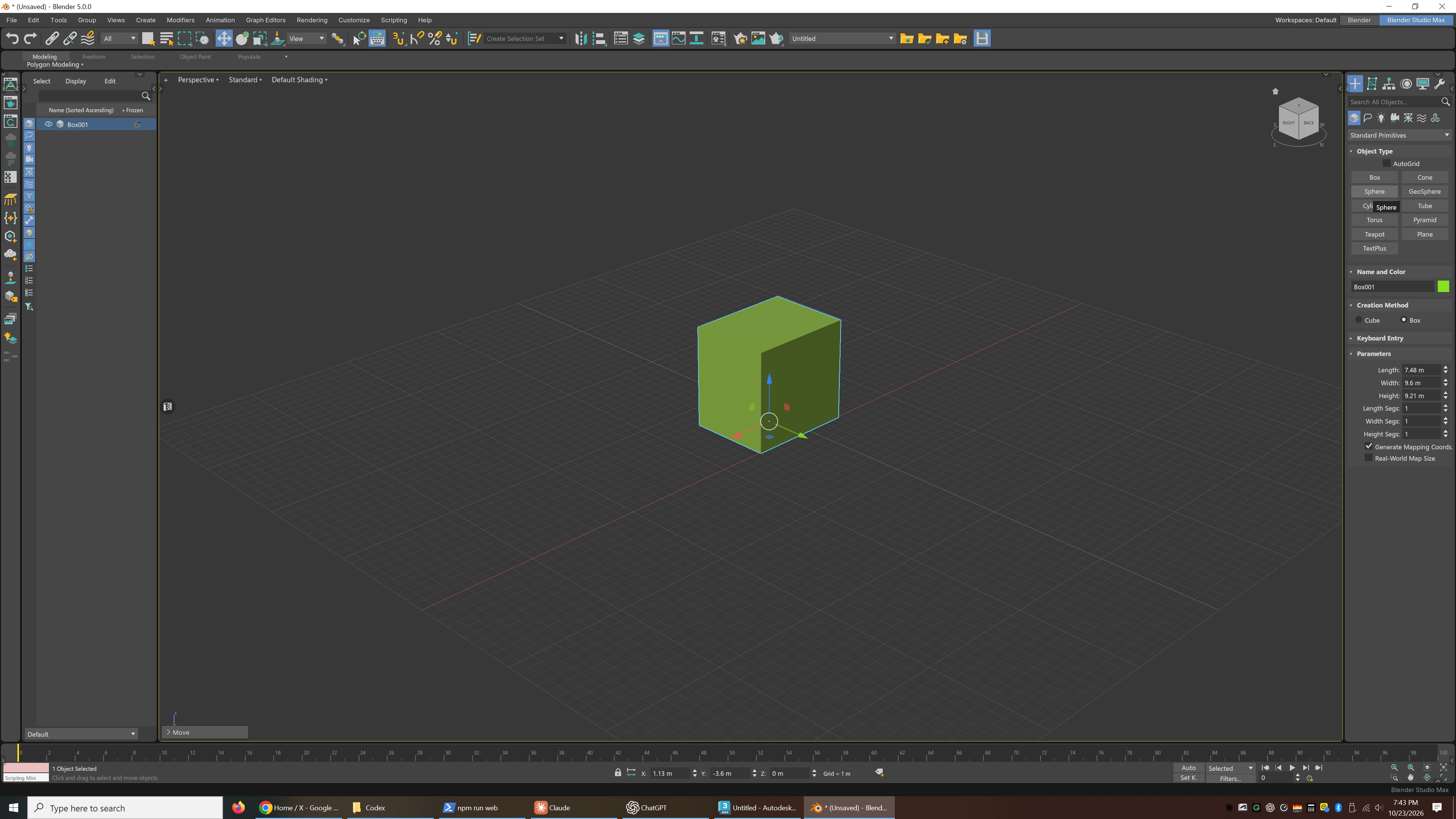
A Max-style toolbar, Scene Explorer and Command Panel around Blender’s live viewport, here rendering a full scene in Cycles with ActiveShade.
- Shift + Q
- Render
- ActiveShade
- Render in the viewport
- Alt + W
- One view or four
A familiar workspace.
A way back, always.
Install the extension, then choose MaxFlow in the top bar to enter the Max-style workspace. Choose Blender to return to Blender’s interface and controls.
Your scene stays in Blender. Model with Max-style controls, switch back for a Blender tutorial, and keep working in the same file.
The toggle below previews interface screenshots.
From download
to your first viewport.
Target versions: Blender 5.0–5.2. No 3ds Max installation or external Python packages are needed. Inside Blender the extension is called MaxFlow.
Download the ZIP
Get blender_max-0.8.3.zip. Keep it zipped; Blender installs the archive directly.
Install from disk
Open Edit → Preferences → Get Extensions. Use the menu at the top right, choose Install from Disk, then select the ZIP and enable the extension.
Choose your workspace
Click MaxFlow at the right of Blender’s top bar. Use the neighboring Blender switch whenever you want to go back.
Let muscle memory
do its thing.
A few familiar keys to get started.
- W E R
- Move · Rotate · Scale
- Alt + W
- Maximize the active viewport
- N
- Toggle Auto Key
- Shift + N
- Open Blender’s sidebar and add-on panels
Familiar tools.
Blender at the core.
Bring your Max experience into Blender’s modeling, materials and animation tools. Here’s how the two come together, and what this release supports.
Blender’s scene, geometry and renderer
Objects, modifiers, materials and animation use Blender’s own systems. The extension does not import or open
.maxfiles.Keep using your Blender add-ons
Your installed Blender add-ons stay available in the Max-style workspace. Press Shift + N to open Blender’s sidebar and access their panels.
Blender 5.0–5.2
Blender Max targets Blender 5.0–5.2.
Work in progress
Save your work before trying new workflows. The interface and available tools can change as the preview develops.
A few things
you might ask.
Is this just a Max keymap?
No. Blender Max goes beyond a keymap: it overhauls the interface and core workflows to bring the look and functionality of 3ds Max into Blender, while retaining Blender’s own tools and capabilities. The workspace, Command Panel, modifier controls, quad menus and editors work on top of Blender’s native modeling, materials, animation and rendering systems.
Do I need 3ds Max installed?
No. Once downloaded, the extension runs inside Blender without an Autodesk application, account or external Python packages.
Can I switch back to regular Blender?
Yes. Use the Blender / MaxFlow switch at the right of the top bar to return to Blender’s interface and controls.
Can I keep using my Blender add-ons?
Yes. Blender Max adds a workspace and workflow controls on top of Blender; your installed add-ons remain available. Use Shift + N to open the sidebar where many add-ons put their panels.
Can it open my .max files?
No. Blender Max does not add .max file support. It works with Blender’s own scene and data systems.
Which version of Blender does it support?
Blender Max targets Blender 5.0–5.2.
Is it free?
Yes. The extension is free and distributed under GPL-3.0-or-later. The license is included with the extension and is available here. If it saves you time, you can support its development with a donation of any amount.